
MECCHA CHAMELEON Settings Guide: Controls, Controller, Shadow, and Metallic Options
Set up MECCHA CHAMELEON controls, controller support, Steam Input, visibility options, shadow toggle, metallic paint, roughness, and practical fallback fixes.
Fast answer
For keyboard and mouse, learn the role actions first: move, crouch, climb, pose, paint, shadow toggle, and free camera. For controller, the most reliable PC path is Steam Input: enable the right controller type in Steam, open the game controller layout, apply a gamepad or community layout, then test inside a private lobby. Metallic and shadow are visual tools, not magic settings; adjust them only when they improve camouflage readability.
Controls and controller support
Basic controls
The exact keybinds can change with personal layouts, but the action set is stable: movement, crouch/stand, climb, pose, paint mode, brush control, taunt, shadow toggle, and free-camera checks. A new Hider should practice only three things before joining a public room: pose, paint mode, and freeze discipline. A new Seeker should practice sweep movement and aim confirmation.
| Control group | Use it for | Setup note |
|---|---|---|
| Movement | Route selection, Seeker sweeps, climb approach | Keep sensitivity stable before judging aim |
| Pose | Breaking the human outline | Bind where you can use it during prep without panic |
| Paint mode | Colour, brush size, roughness, metallic, finish | Do not bury brush controls behind awkward modifiers |
| Shadow toggle | Checking visibility in dark or high-contrast spots | Use it as a view check, not a permanent crutch |
| Free camera | Testing how a hide reads from the Seeker angle | Practice privately before using it under timer pressure |
Controller support
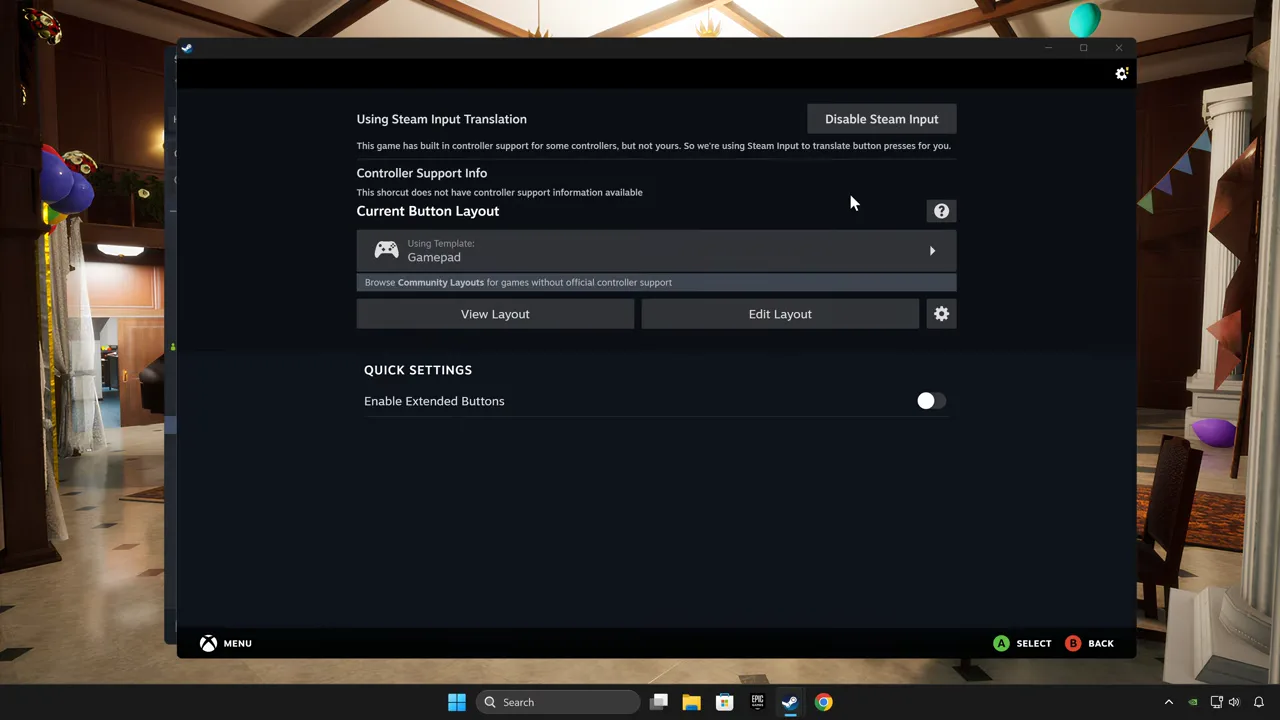
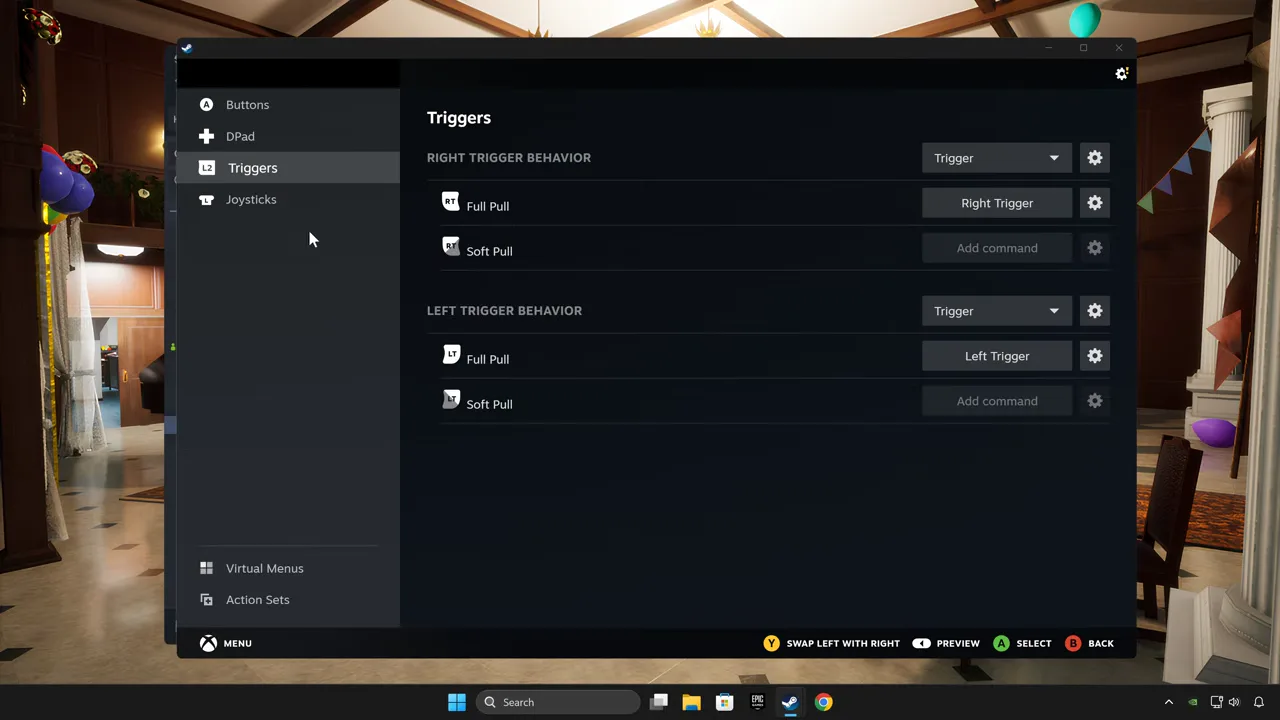
If your controller works in Steam but not cleanly in MECCHA CHAMELEON, fix detection outside the match first. Do not debug a controller while the group is waiting in a live room. Steam Input can translate button presses and lets you edit a gamepad layout from the library controller icon.
- Restart Steam as administrator. This removes one common permissions variable on Windows.
- Open Steam settings. Go to Controller settings and enable support for your controller type.
- Add the game to Steam if needed. For non-Steam copies, add it as a non-Steam game before configuring input.
- Open the controller icon from the library page. Enable Steam Input and apply a gamepad layout.
- Edit or browse community layouts. Keep the first layout simple; only remap after testing the role actions.
- Test in a private lobby. Confirm move, aim, pose, paint, climb, and menu navigation before inviting friends.
Best settings for visibility and performance
Best settings short list
There is no universal "best settings" preset because Hiders and Seekers want different information. Hiders want accurate material feedback. Seekers want readable silhouettes and stable frame pacing. Use this baseline first, then change one setting at a time.
| Setting area | Recommended baseline | Why |
|---|---|---|
| Resolution | Native or stable scaled resolution | Prevents blurry edges when scanning props |
| Frame rate | Stable over maximum | Seekers need consistent camera motion |
| Shadow view | Toggle/check during setup | Dark areas can hide or expose outlines depending on role |
| Metallic | Low unless the nearby surface is glossy | Wrong shine exposes Hiders faster than a small hue mismatch |
| Roughness | Match nearby material | Flat walls and polished props need different finish |
Turning off metallic
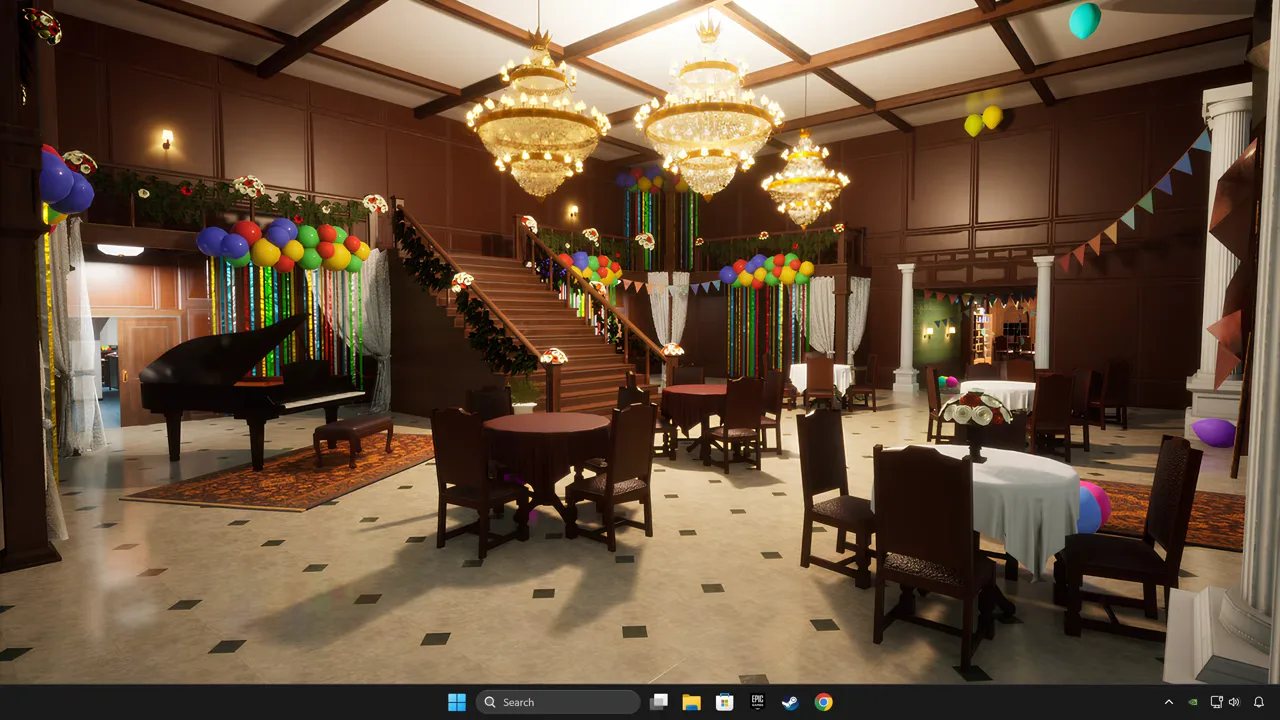
In paint mode, metallic is a material-finish slider. If your body is shining while the wall or prop is flat, lower metallic close to zero. Do not use metallic as a default body-wide effect. Use it only when the nearby surface has the same reflective read. This is especially important on clean indoor maps and bright party rooms.
Turning off shadow
The shadow control is useful as a visibility check. If shadows make your own paint evaluation unreliable, toggle them off while testing the hide, then check again from the Seeker approach angle. For performance, reduce shadow cost if the game feels unstable, but do not assume turning shadows off makes every hiding spot stronger. It can also make silhouettes easier to read.
Controller fixes if input still fails
Xbox, PlayStation, and third-party pads
When Steam Input does not solve detection, use the controller vendor path before changing in-game settings. Xbox users should confirm the controller is visible to Windows and updated through the Xbox Accessories app. PlayStation users should confirm the pad through PlayStation Accessories; DS4Windows can help when Windows detection is inconsistent. For generic pads, install the correct driver or test an XInput emulator only after Steam Input fails.
Do not tune everything at once. Change controller detection first, then layout, then visual settings. Mixing all three makes the failure impossible to isolate.
Controls and settings FAQ
What to read next
After controls are stable, move to How to Play MECCHA CHAMELEON for first-match execution, then use the Camouflage Simulator for paint practice and the Online guide before opening a public room.